Dev License: This installation of WHMCS is running under a Development License and is not authorized to be used for production use. Please report any cases of abuse to abuse@whmcs.com

How to Change the SolusVM 2 Control Panel Password

If you can access your SolusVM 2 VPS control panel, you can easily change your SolusVM 2 password. We recommend changing your password regularly to maintain account security.


1. Log in to your SolusVM 2 Control Panel.

2. Click on Account in the left-hand sidebar.
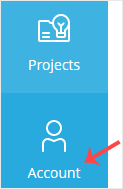
solusvm2-account-menu.gif


3.
Under Account, enter the following details:

  • Current Password: Your current SolusVM 2 Control panel password.
  • Change Password: Your new password.
  • Confirm Password: Again, enter your new password.
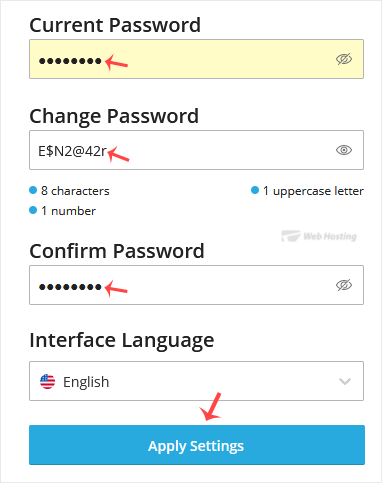
solusvm2-password-change.gif


4. Click on Apply Settings.

You have changed your SolusVM 2 control panel password.

  • 0 أعضاء وجدوا هذه المقالة مفيدة
هل كانت المقالة مفيدة ؟

مقالات مشابهة

How to Log in to SolusVM 2 Control Panel

You can find the Control Panel URL, username (email address), and password in your VPS welcome...

How to Check if Your VPS is Online or Offline in SolusVM 2

You can check the status of your SolusVM Virtual Private Server (VPS) to see if it is online or...

How to Check VPS Specifications and Virtualization Info in SolusVM 2

You can check VPS specifications such as RAM, disk space, virtualization, IP Address, etc., from...

How to Enable Two-Factor Authentication in SolusVM 2

Two-factor authentication helps secure your account and prevent unauthorized access by adding an...

How to Disable Two-Factor Authentication in SolusVM 2

Follow this instruction to disable two-factor authentication from your SolusVM 2 account. 1. Log...

Powered by WHMCompleteSolution