Dev License: This installation of WHMCS is running under a Development License and is not authorized to be used for production use. Please report any cases of abuse to abuse@whmcs.com

How to Encrypt Database Password in Plesk Backup

In this tutorial, you will learn how to encrypt the database password in a Plesk backup.

1. Log in to your Plesk account.

2. Go to Websites & Domains > Click on the Pull icon > Choose Backup & Restore.
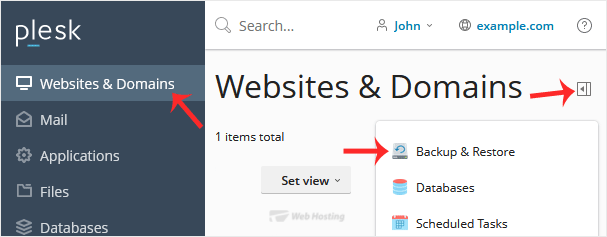
plesk-account-backup-manager-access.gif

3. Click on Remote Storage Settings.

click-remote-storage-settings.gif

4. On the right side of Password Protection, if it displays Disabled, click on change.
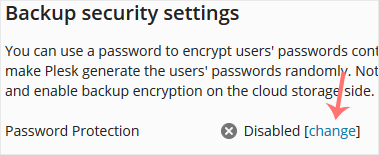
password-protect-backup-in-plesk.gif

5. Checkmark Use password protection and enter a password. Then confirm with Apply.
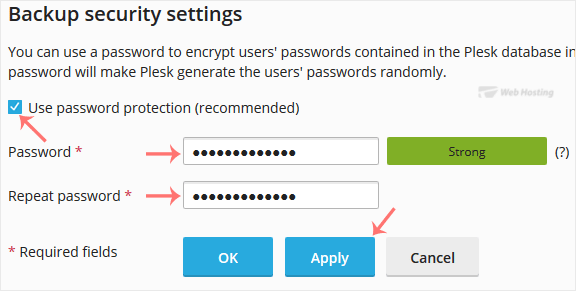
enable-password-protection-in-plesk-backup.gif

Ensure that you store your password in a safe place. You will need it when restoring a backup. If you have forgotten your password or do not enter one, Plesk will restore your backup with a random database password.

  • 0 Els usuaris han Trobat Això Útil
Ha estat útil la resposta?

Articles Relacionats

How to Generate a Full Backup in Plesk

Backing up is important, and you should do it regularly. Follow this tutorial to make a full...

How to Exclude Specific Files/Folders from the Plesk Backup

In this tutorial, you will learn how to exclude specific files or folders from a backup in Plesk....

How to Configure an FTP Backup in Plesk

In this tutorial, you will learn how to configure an FTP backup in Plesk. This allows you to...

Powered by WHMCompleteSolution