Dev License: This installation of WHMCS is running under a Development License and is not authorized to be used for production use. Please report any cases of abuse to abuse@whmcs.com

How to Change Hostname in Virtualizor

You can change the hostname in Virtualizor.

1. Log in to your Virtualizor Control Panel.

2. From the left side panel, click on List VPS.

virtualizor-list-vps-menu.gif

3. Hover your mouse on the appropriate VPS, and that line will be highlighted. Then click on the Wrench icon in the highlighted line.

virtualizor-click-manage-vps.gif

4. Click on the Settings tab and select the Change Hostname. Enter your new hostname and click on Change Hostname.
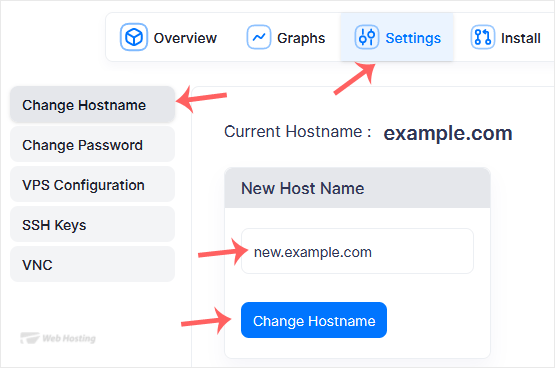
virtualizor-change-hostname.gif

5. Reboot the VPS to apply the changes.

Your hostname has been successfully changed in Virtualizor. You can now use the new hostname for your server.

  • 0 gebruikers vonden dit artikel nuttig
Was dit antwoord nuttig?

Gerelateerde artikelen

How to Reboot/Restart VPS in Virtualizor

You can restart VPS via the command line or Virtualizor. How to Reboot/Restart a VPS via...

How to Forcefully or Gracefully Shut Down the VPS in Virtualizor

You can shut down the VPS in two ways - forcefully or gracefully in Virtualizor. How to...

How to Start/Boot Your VPS in Virtualizor

If your VPS is down/offline, you can start it using Virtualizor. 1. Log in to your...

How to Access VPS via VNC in Virtualizor

You can access your VPS via VNC in an emergency, such as when a firewall blocks your IP, the...

How to Reinstall an OS Using the Virtualizor Automatic OS-Reinstaller

You can easily Install/Reinstall the operating system using the Virtualizor. However, note that...

Powered by WHMCompleteSolution