Dev License: This installation of WHMCS is running under a Development License and is not authorized to be used for production use. Please report any cases of abuse to abuse@whmcs.com

How to Change the VPS Root/Admin Password in SolusVM 2

You can change the root/admin password of your VPS Operating System using SolusVM 2.


1. Log in to your SolusVM 2 Control Panel.

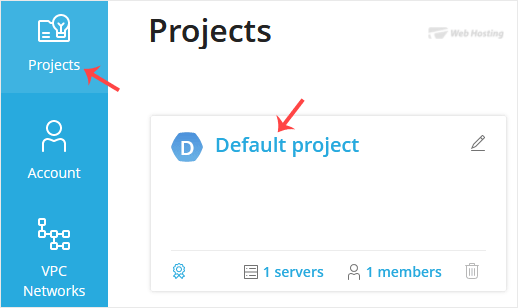
2. Under Projects, click on the project that contains your VPS.
solusvm2-vps-status.gif

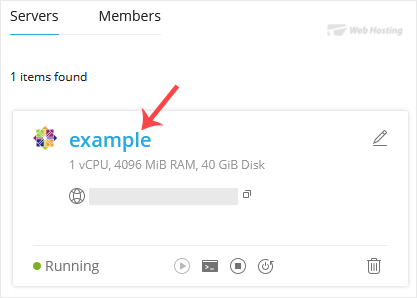
3. Click on the appropriate VPS.
solusvm2-vps-select.gif


4. Go to the Boot & Rescue tab.

solusvm2-boot-rescue-tab.gif


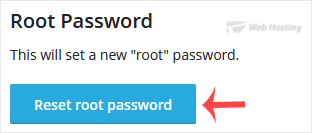
3. Click Reset Root Password, then click Reset to proceed.
solusvm2-reset-root-password.gif


4. It may take a few moments for the password to change, after which a success message will display. Copy the password to Notepad.

solusvm2-password-changed.gif

You have successfully changed the root/admin password.

  • 0 gebruikers vonden dit artikel nuttig
Was dit antwoord nuttig?

Gerelateerde artikelen

How to Reboot/Restart VPS in SolusVM 2

You can restart VPS via the command line or SolusVM 2. How to Reboot/Restart a VPS via SolusVM...

How to Forcefully or Gracefully Shut Down the VPS in SolusVM 2

You can shut down the VPS in two ways - forcefully or gracefully in SolusVM 2. How to...

How to Start/Boot Your VPS in SolusVM 2

If your VPS is down/offline, you can start it using SolusVM 2.1. Log in to your SolusVM 2 Control...

How to Access VPS via VNC in SolusVM 2

You can access your VPS via VNC in an emergency, such as when a firewall blocks your IP, the...

How to Reinstall an OS Using SolusVM 2

You can easily Install/Reinstall the operating system using SolusVM 2. However, note that this...

Powered by WHMCompleteSolution