Dev License: This installation of WHMCS is running under a Development License and is not authorized to be used for production use. Please report any cases of abuse to abuse@whmcs.com

How to Change Your Virtualizor Account Password

If you can access your Virtualizor VPS control panel, you can easily change your Virtualizor password. We recommend you to change the password frequently and use a strong one.

1. Log in to your Virtualizor Control Panel.

2. From the top right-hand side, click on Profile Avatar and navigate to My Profile.
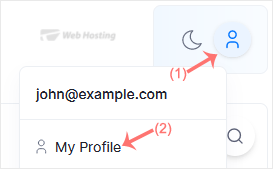
virtualizor-account-password.gif

3. Click on the Account Password tab. Enter your new password and then click on Change Password.
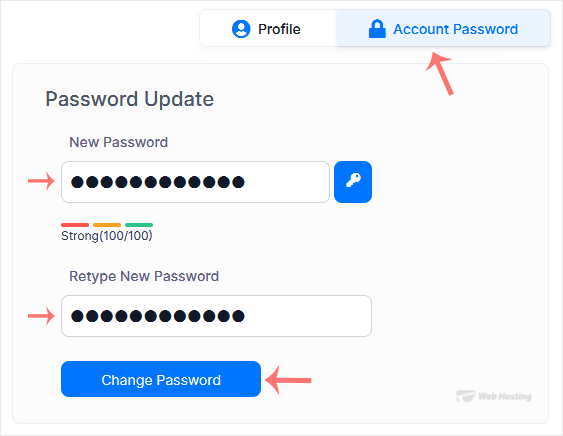
virtualizor-change-password.gif

Your Virtualizor account password has been successfully changed. You can now log in with your new password.

  • 0 Utenti hanno trovato utile questa risposta
Hai trovato utile questa risposta?

Articoli Correlati

How to Log in to Virtualizor Control Panel

You can find the Control Panel URL, username and password in your VPS welcome email. Virtualizor...

How to Check VPS Online or Offline Status in Virtualizor

Do you want to check your Virtualizor VPS status and determine whether the VPS is offline or...

How to Check VPS Specifications and Virtualization Info in Virtualizor

You can check VPS specifications such as RAM, disk space, virtualization, IP Address, etc., from...

Powered by WHMCompleteSolution