Dev License: This installation of WHMCS is running under a Development License and is not authorized to be used for production use. Please report any cases of abuse to abuse@whmcs.com

How to Access VPS via VNC in SolusVM 1

You can access your VPS via VNC in an emergency, such as when a firewall blocks your IP, the Internet connection on the VPS is not working, and when you cannot access SSH. Also, you can use VNC for OS installation/reinstallation.


1. Log in to your SolusVM 1 Control Panel.


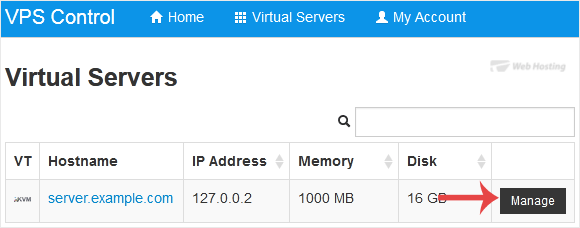
2. If you have multiple VPSs, select the appropriate one.
solusvm-select-vps.gif


3. Click on VNC.
solusvm-vnc-start.gif


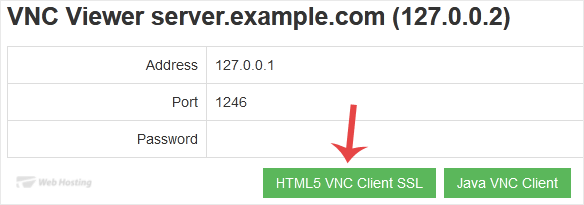
4. The new VNC page will open. Click on HTML5 VNC Client SSL(Recommended) or Java VNC Client.
solusvm-vnc-area-button.gif


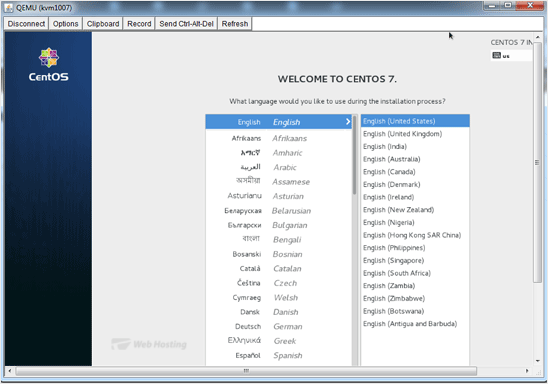
5. The VNC Area will resemble the following screenshot:
java-vnc-area.gif


Now you know how to use VNC to access your VPS in SolusVM 1.

  • 0 utilizatori au considerat informația utilă
Răspunsul a fost util?

Articole similare

How to Reboot/Restart VPS in SolusVM 1

You can restart VPS via the command line or SolusVM 1. How to Reboot/Restart a VPS via SolusVM...

How to Forcefully or Gracefully Shut Down the VPS in SolusVM 1

You can shut down the VPS in two ways - forcefully or gracefully in SolusVM 1. How to...

How to Start/Boot Your VPS in SolusVM 1

If your VPS is down/offline, you can start it using SolusVM 1.1. Log in to your SolusVM 1 Control...

How to Reinstall OS Using SolusVM 1 OS-Reinstaller

You can easily Install/Reinstall the operating system using SolusVM 1. However, note that this...

How to Enable Disable APIC, ACPI, VNC in SolusVM 1

SolusVM 1 allows you to enable or disable VNC, PAE, APIC, and ACPI.1. Log in to your SolusVM 1...

Powered by WHMCompleteSolution
